Version 1.0 - Last Updated: 15 Jul 2026
SIS LLE guidance
CoC worklist
After selecting LLE Applications from the main menu, you'll see the following:

After selecting the CoC Worklist radio button, you'll see the following:
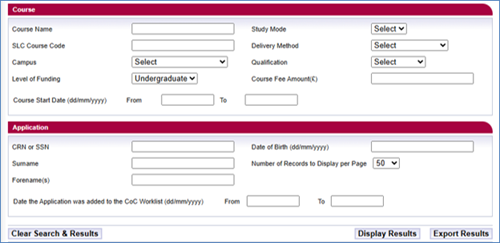
There are a number of fields available in the Course section:
- Course Name: you must enter at least 3 characters to perform a search; wildcards are no longer required.
- SLC Course Code: you must enter at least 3 characters to perform a search; wildcards are no longer required.
- Campus: to select a specific campus, highlight the campus location from the dropdown list.
- Level of Funding: although LLE is limited to undergraduate funding, you'll see a dropdown menu, if you choose to use this option.
- Course Start Date From and To: enter the start date for the courses or modules you want to view. For example, to view all courses that start on 1 August, enter 01/08/2026 in both the From and To fields. To view courses that start between 1 and 31 August, enter 01/08/2026 in the From field and 31/08/2026 in the To field. You should enter this in dd/mm/yyyy format.
- Study Mode: a dropdown with a choice of modes of study.
- Delivery Method: a dropdown with a choice of delivery methods.
- Qualification: a dropdown with a choice of qualification
- Course Fee: enter the full course or module fee rate you're charging in this field.
Application section fields
These are the fields available in the application section:
- CRN or SSN: these are unique student identifiers issued by SLC.
- Surname: the student’s name.
- Forename(s): the student’s first name.
- Date of birth: the format is dd/mm/yyyy.
- Date the Application was added to the CoC Worklist (dd/mm/yyyy) From and To: the date when the application was added to the worklist. You should enter this in dd/mm/yyyy format.
- Number of Records To Display: the number of search results per page. The default is 50, but you can change it to 100 or 200.
Display results
Once you've entered your search criteria, select Display Results to search all student details in the system. The search will retrieve those that match your criteria.
The search results will appear in the bottom section of the page. They'll be ordered alphabetically by surname.
The list below shows the fields you'll see for each student record.
- CRN: customer Reference Number – these are unique student identifiers
- Full Name: the student’s full name.
- Course Name: the student’s course or module name.
- SLC Course Code: the SLC code of the student’s course or module.
- Course Year: the course year that the student is studying.
- TFL Amount (£): the Tuition Fee Loan as requested by the student. This is the portion of their total fee paid by the Tuition Fee Loan.
- Course Year Credits: the number of credits associated with the course or module; this is populated from the data entered in CMS.
- Attendance Code: the current attendance code entered for that student.
- Date Application added to Worklist: the date in which the application was added to the worklist.
- Create CoC: allows a CoC to be created for the student.
Print this chapter
Was this page helpful?
Thank you for your feedback
This site is protected by reCAPTCHA and the Google
Privacy Policy and
Terms of Service apply.