Version 1.0 - Last Updated: 08 Jul 2025
Creating LLE courses
Copying created courses
Copying created courses
Core Course
- To copy a core course, select Select Action then View on the core course you’d like to copy:

This will show the details previously entered for the core course.
- Select Copy This Course in the top right corner:
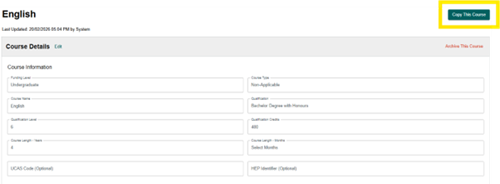
This screen will appear with a pop-up message in the bottom left corner.
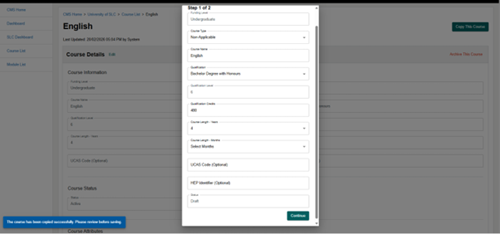
You can edit the course details on any field that’s not greyed out.
- Scroll down and select Continue.
Any previously entered course attributes will show at this stage.
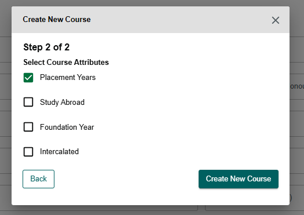
You can add or remove course attributes here.
- Select Create New Course once you’ve entered all the necessary course details. The new core course will show in your course list as being in Draft status.
Please note, if you try to save a core course with the exact same details as the one you’ve copied from, you’ll get an error message at step 2:
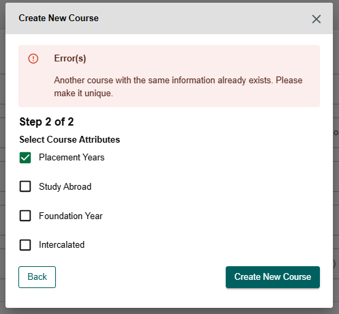
You can copy a core course whether its draft, in review or active.
Course Variant
- To copy a course variant, select Select Action then View against the variant you want to copy:
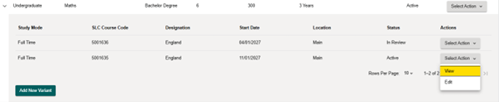
This will show the details previously entered for the course variant.
- Select Copy This Variant in the top right corner:
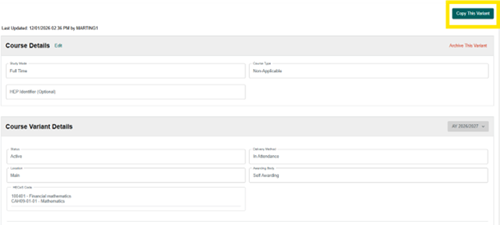
A pop-up message will appear confirming that the course variant has been copied successfully. Please review before saving.

On the copied variant, some data will be copied over, and the rest of the fields will reset. You’ll need to review all the data fields to make sure they’re completed correctly. You can edit the details on any field that’s not greyed out.
- Select Create New Variant. If any details are incomplete, an error messages will show next to the incomplete data fields for you to review before you can save it.
The new course variant will show under the core course in your course list in Draft status.
You can copy a core course whether its draft, in review or active.
Module Course
- To copy a module, select Select Action then View against the variant you want to copy:
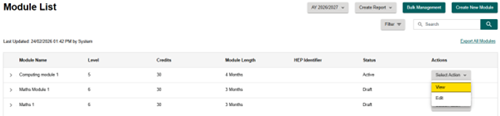
This will show the details previously entered for the course module.
- Select the Copy This Module button:
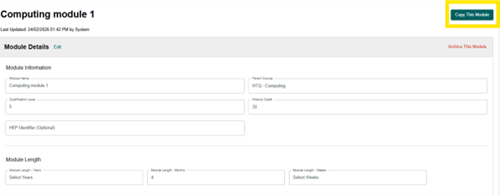
A pop-up message will appear that states: The module has been copied successfully. Please review before saving.
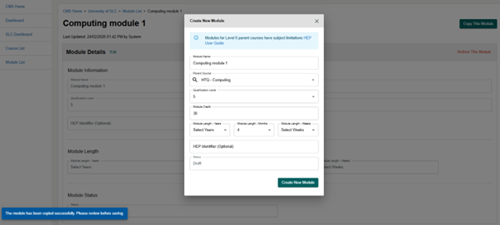
On this page you can edit the module details on any field that’s not greyed out.
- Select the Create New Module The new module will show in your module list as being in Draft status.
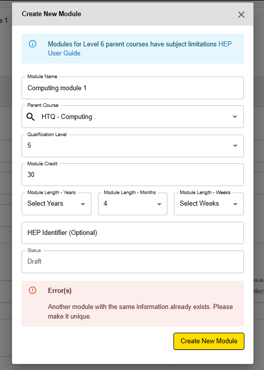
If you try to save a module with the same details as the one you’ve copied from, you’ll get an error message that says: Another module with the same information already exists. Please make it unique.
You can copy a core course whether its draft, in review or active.